Screenshots
But what does it look like? Remember that the most useful feature of this application is the ability to manage stations from your AI harness, but it's also a full-fledged remote support system on par with TeamViewer, AnyDesk, Splashtop and many others.
Signing in
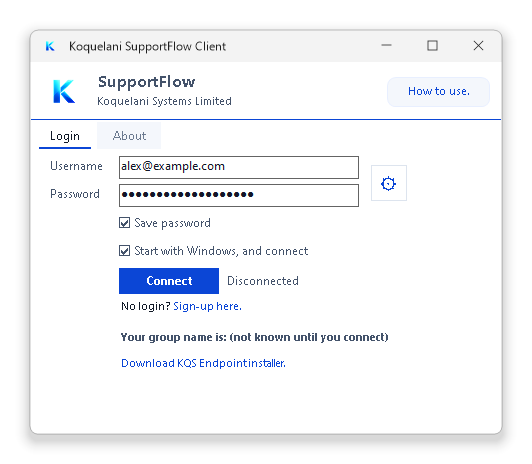
The SupportFlow Client is the program on your own PC. Sign in with your SupportFlow account and press Connect. The gear beside the boxes opens the Client's options — among them your devices, your ControlKey and the AI connectors your assistant uses. See Getting started.
The Stations window
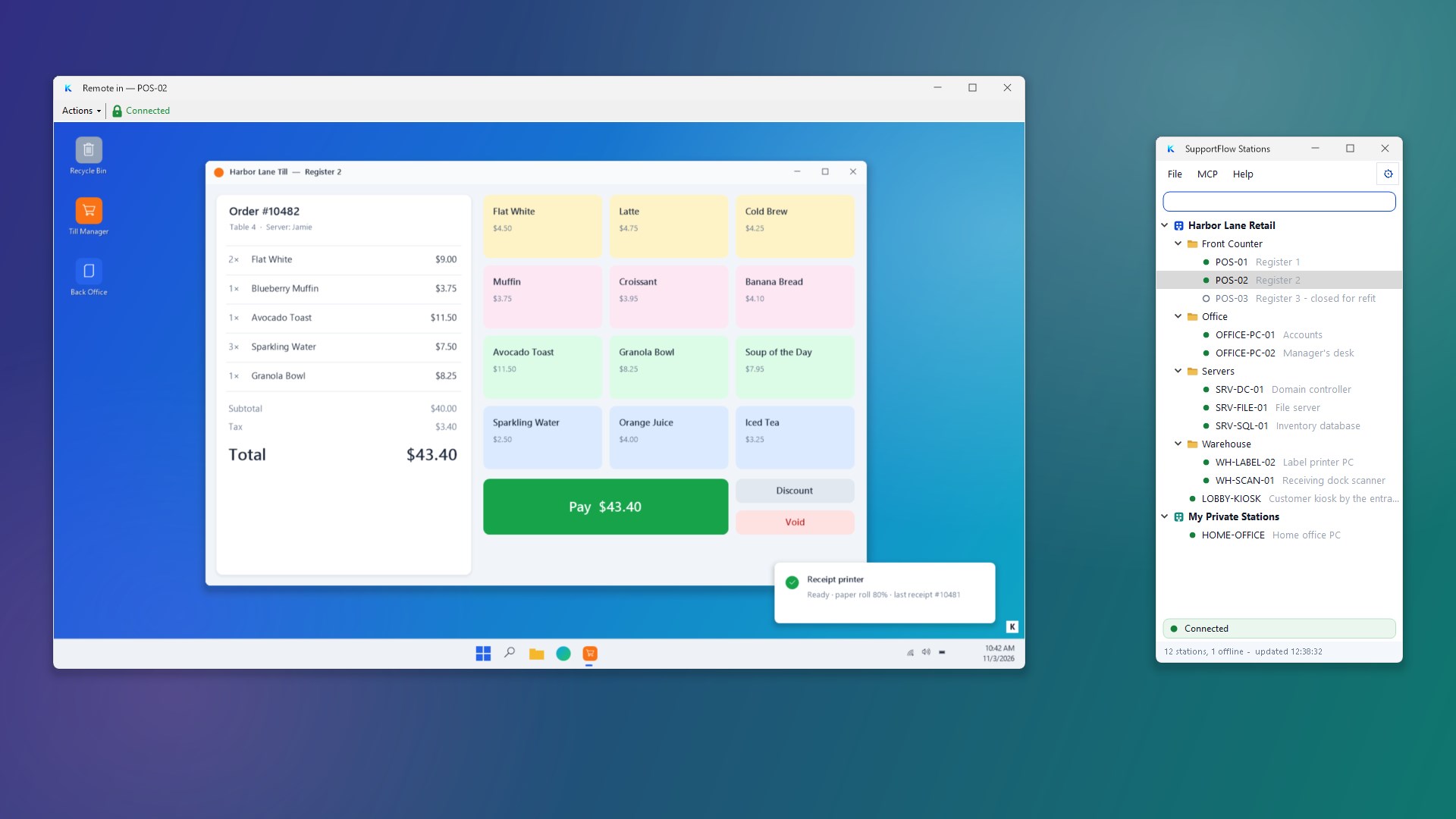
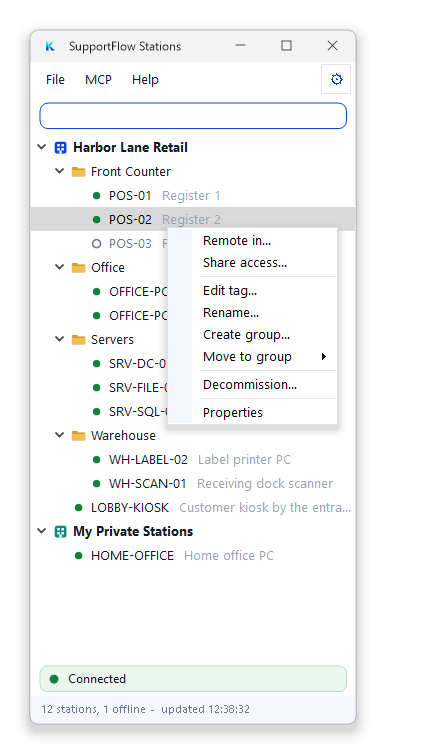
Right-click the SupportFlow icon in the system tray and choose Show Stations. Your organization's stations are listed in their groups — a green dot for each one that is online, its tag in grey beside its name — with your private stations underneath. Right-click a station for what you can do with it: Remote in, share access, edit its tag, rename it, put it in a group, decommission it or open its Properties. What the menu offers depends on your role. See the Stations window.
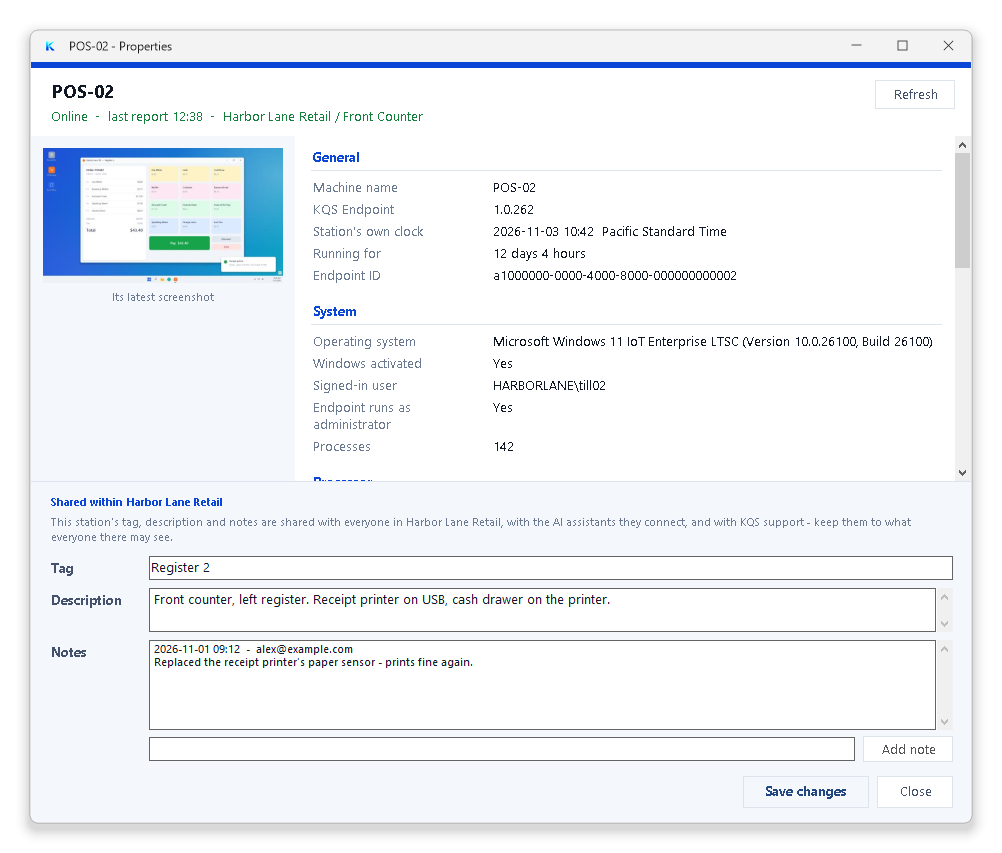
Properties shows a station's latest screenshot and what it reports about itself — Windows, processor, memory, storage, display, network and security — with the tag, description and notes your organization keeps for it.
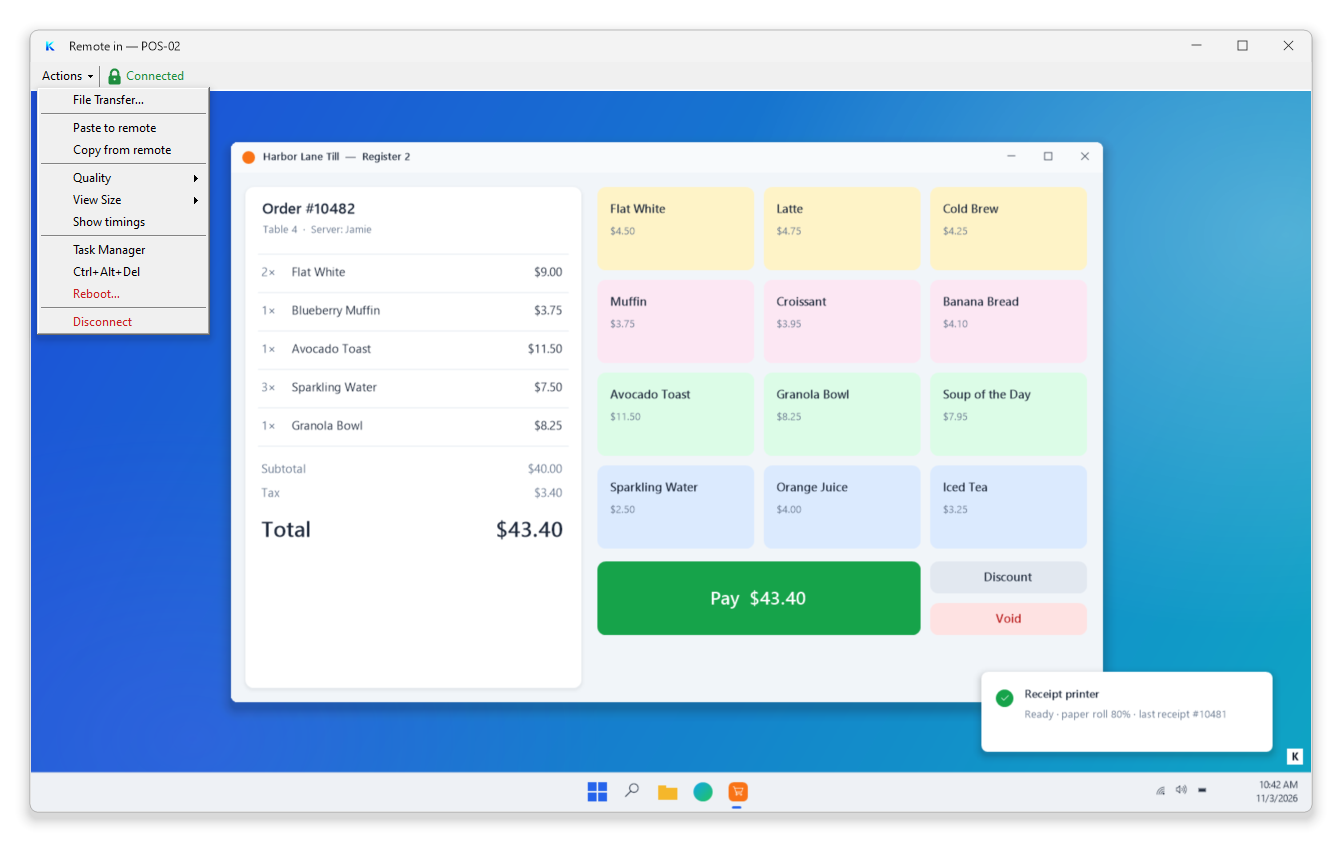
Remote in with the Native Viewer
Choose Remote in and, with the Native Viewer as your Viewer Type, the station's screen opens in a window of its own on your PC. Use your mouse and keyboard on it as if you were sitting in front of it. Actions holds the rest: File Transfer, pasting text to the station and copying it back, the picture's quality and size, Task Manager, Ctrl+Alt+Del, Lock and Reboot. See the Native Viewer.
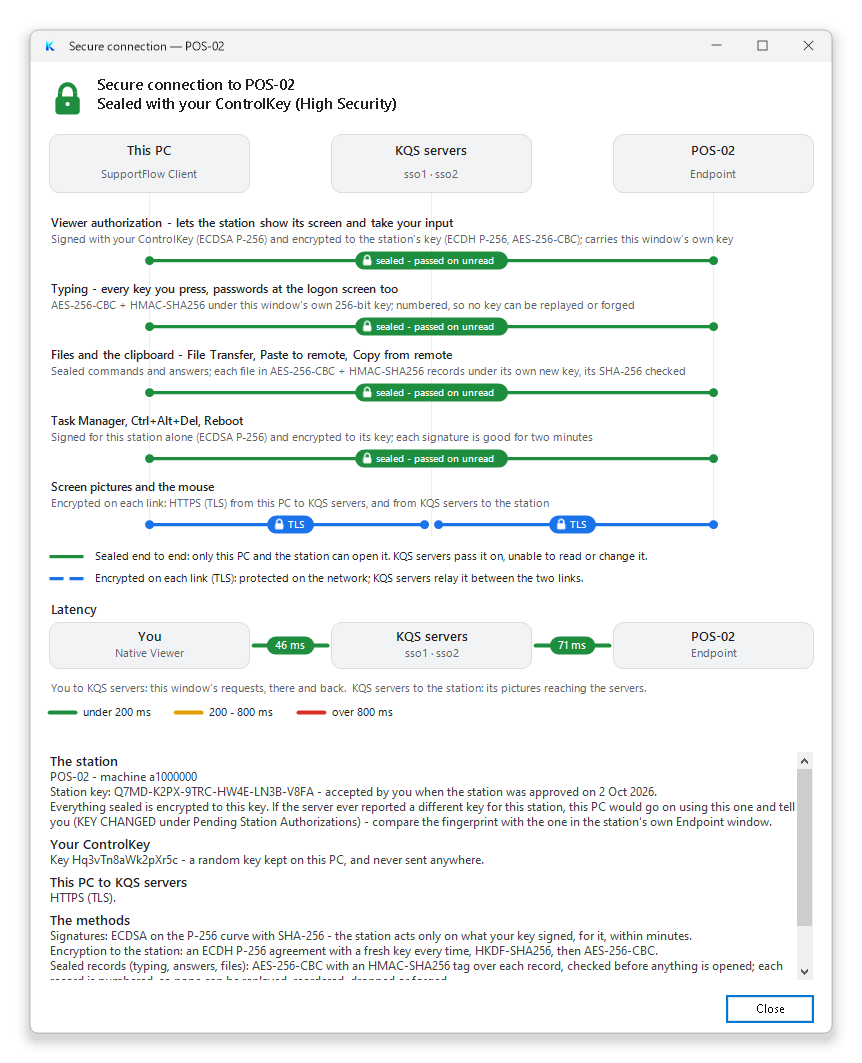
The padlock beside Connected opens the details of the connection: what is sealed with your ControlKey so that only your PC and the station can read it, what travels encrypted on each link, and how long each link takes.
File Transfer
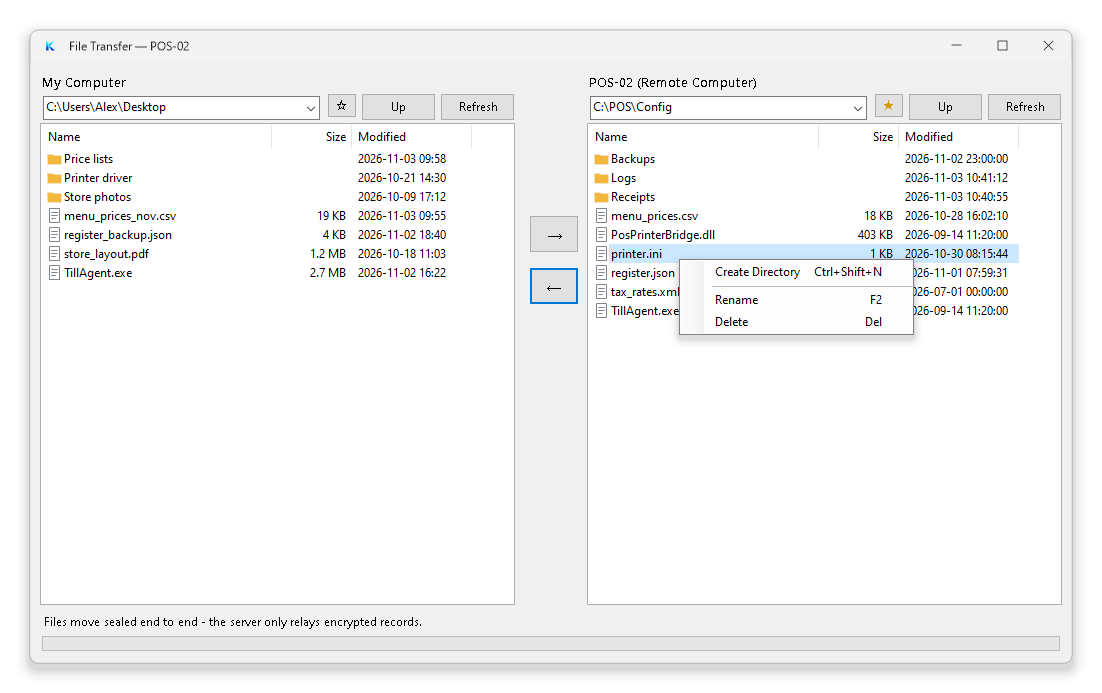
Actions › File Transfer opens your PC on the left and the station on the right. Choose files and folders — one or many — and press the arrow to send them across, or drag them. A folder goes with everything in it; the whole copy is counted first, and the progress window's Cancel stops it at once. Files travel sealed end to end. See File Transfer.
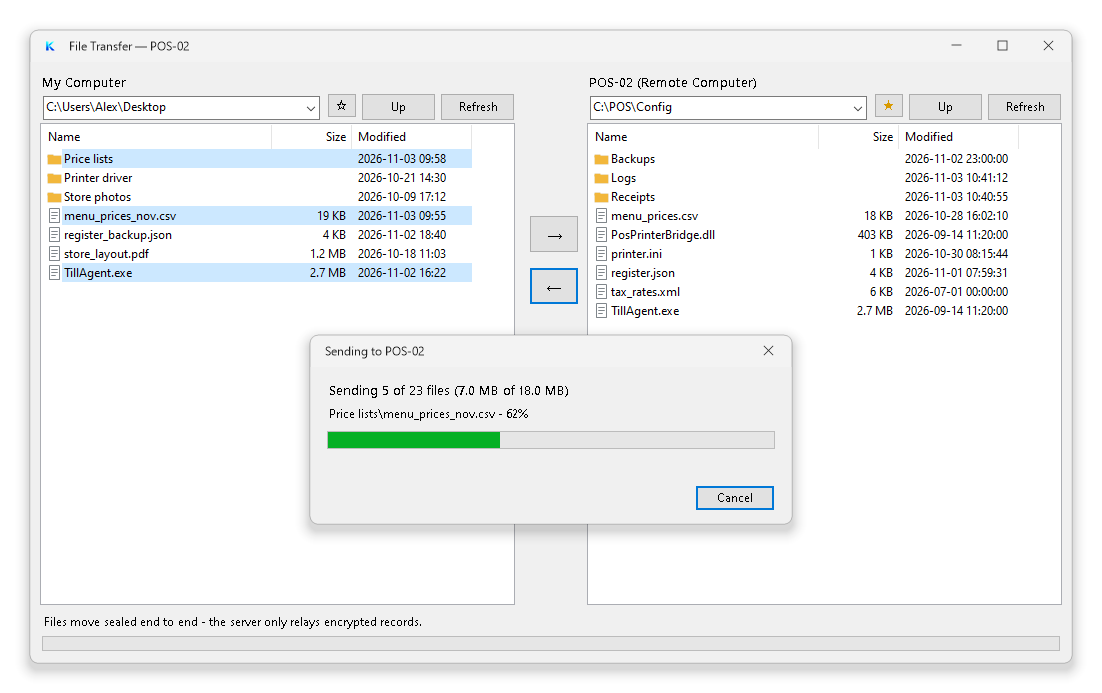
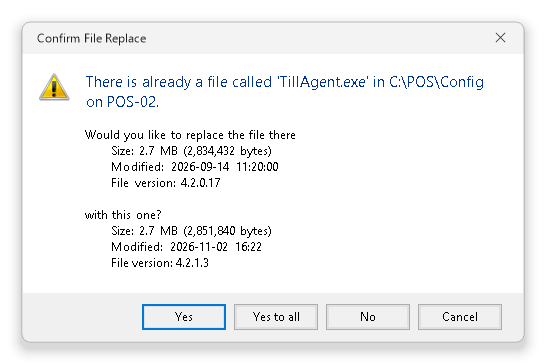
Right-click either list for Create Directory, Rename and Delete. When a file is already there you are asked as Windows Explorer asks — Yes, Yes to all, No or Cancel — with both copies' size, date and, for a program or library, their file version.